Just one more video?
You set a bedtime for TikTok. Leechy remembers, even when your thumb forgets.
Download on the App StoreThe BEST APP to control your screen time
You set a bedtime for TikTok. Leechy remembers, even when your thumb forgets.
Download on the App StoreThe BEST APP to control your screen time
Selected reviews, in the words of the people who wrote them.
This is good help for
My work time, also includes spending more time with my family.
OMG this app is so good 😊 I love it plus it’s so cute 🥰
Leach. Is so adorable and it helped me. So much
Excelente app, me ha ayudado a tener mejores hábitos de sueño
Muy buena, me ha ayudado muchísimo con la procrastinación
Es excelente. Eventualmente puede tener errores pero nada grave, simplemente se actualiza desde la misma aplicación los horarios y todo se resuelve
Tap a screenshot to enlarge it.Swipe to browse, tap to enlarge.
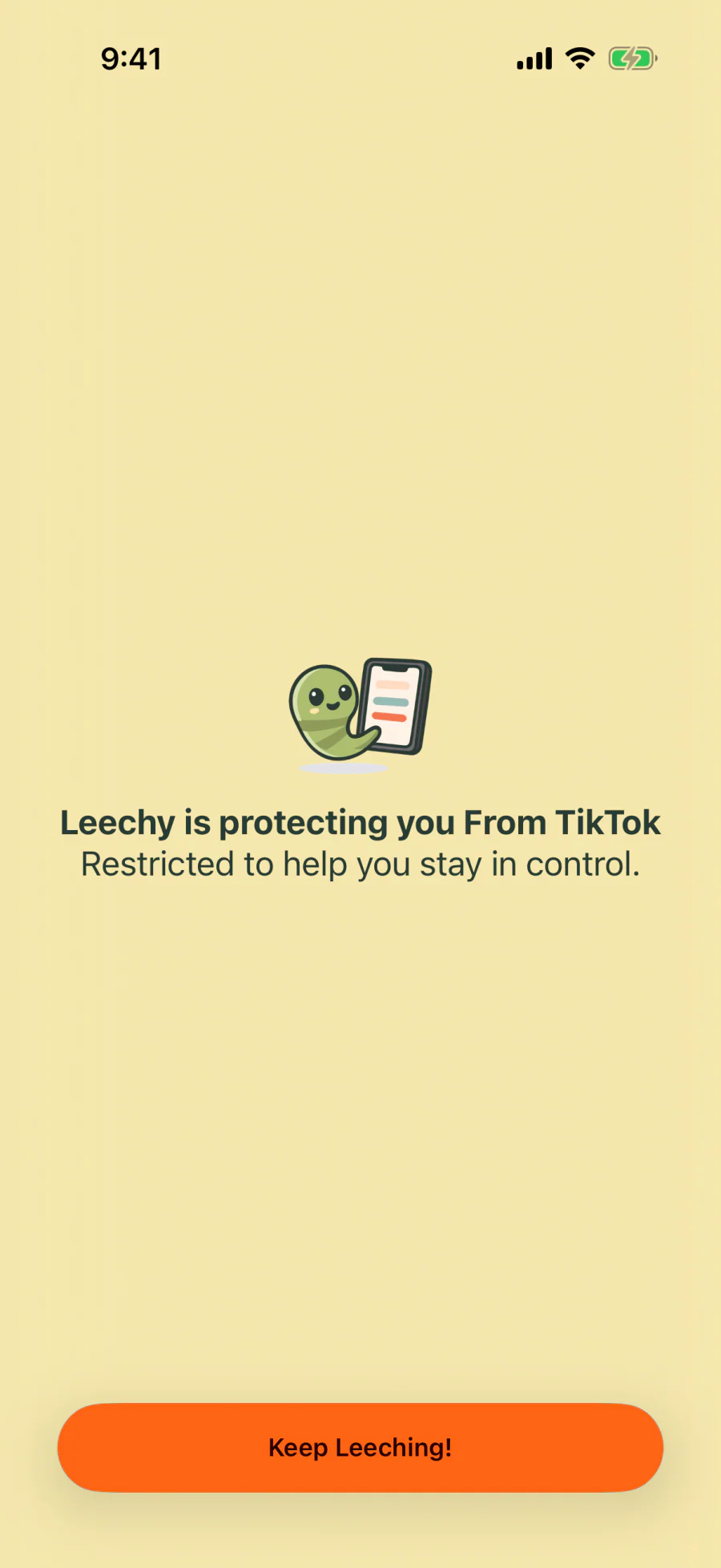
Restricted to help you stay in control.
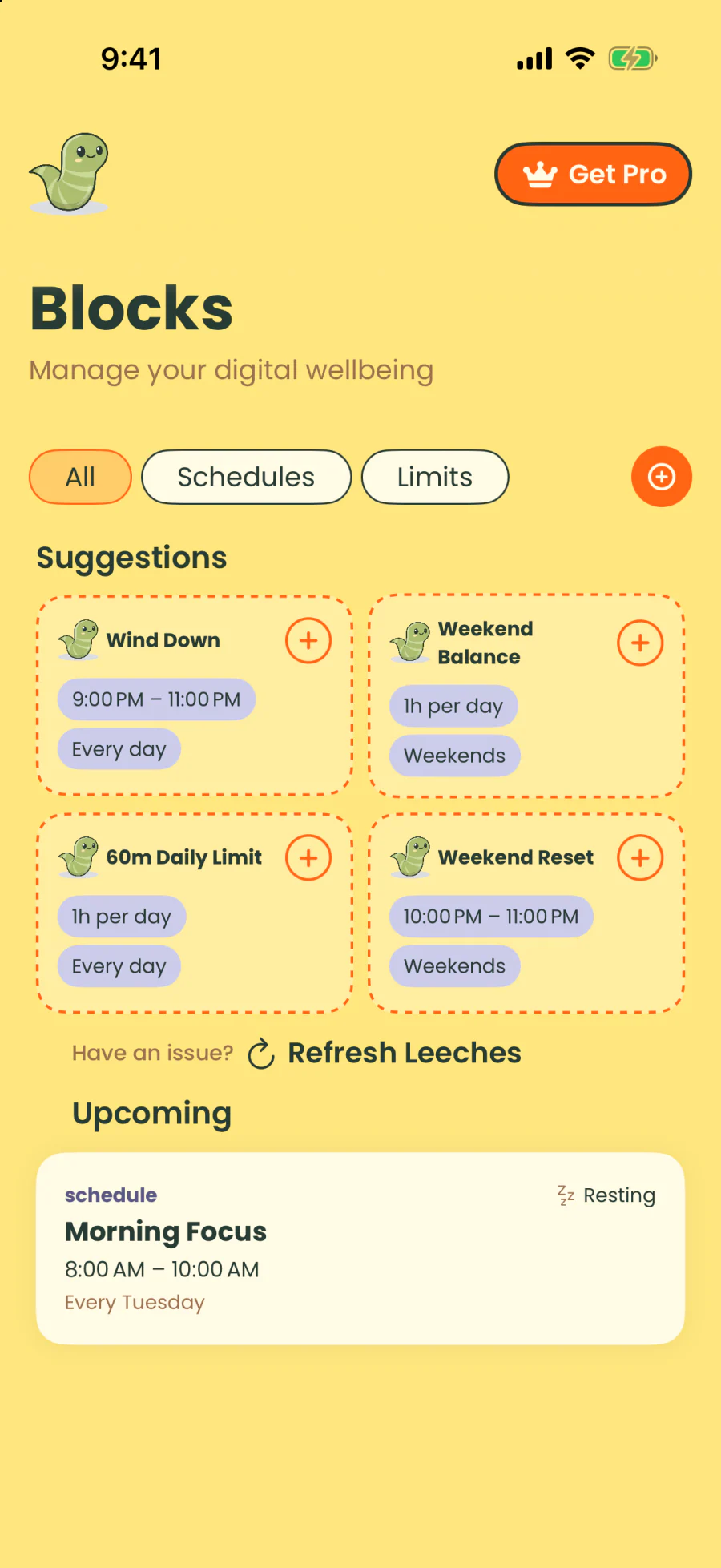
Manage your digital wellbeing
Have an issue?Refresh Leeches
Protecting your time until 11:00 PM.
schedule
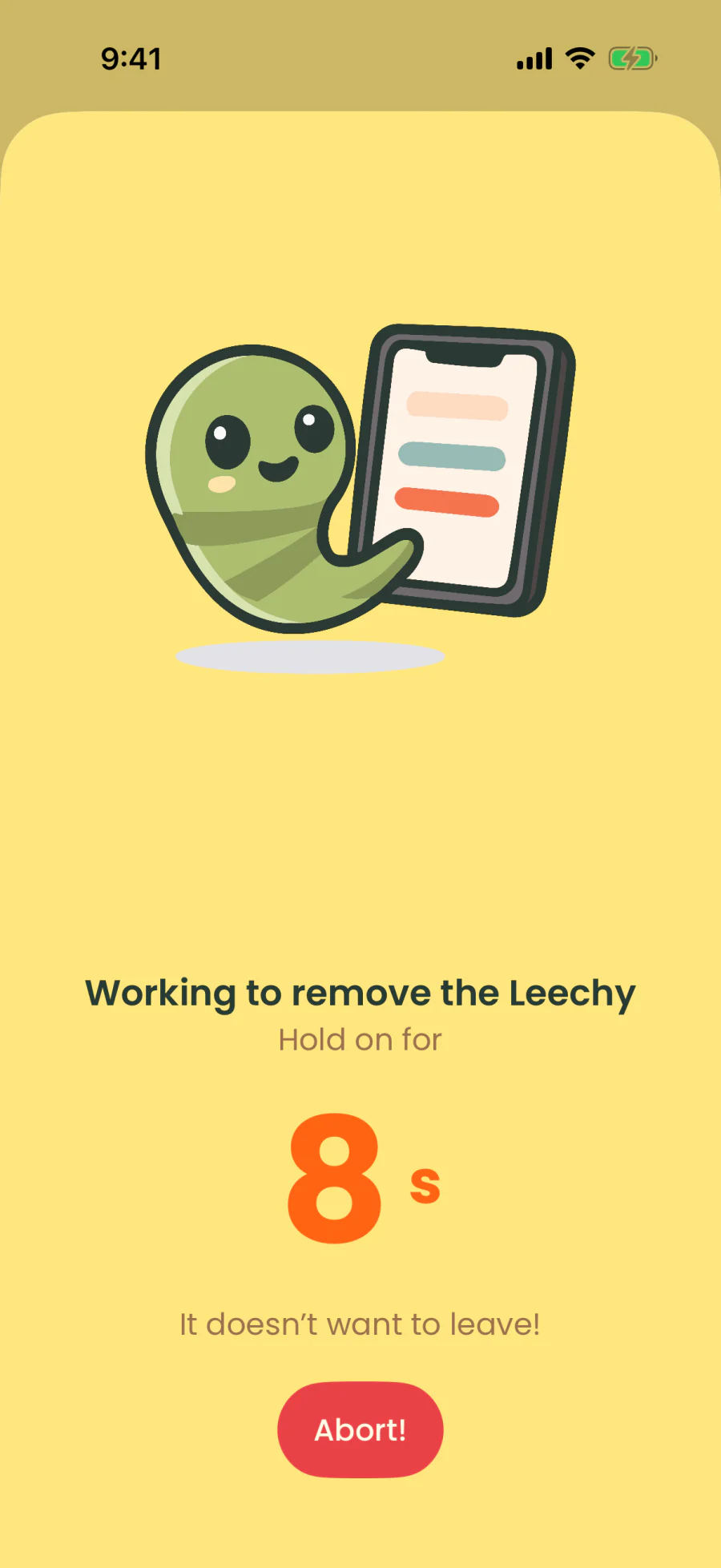
Hold on for
Choose how long to unblock your apps.
It doesn’t want to leave!
Decide which apps go to bed with you. Screen Leech takes it from there.
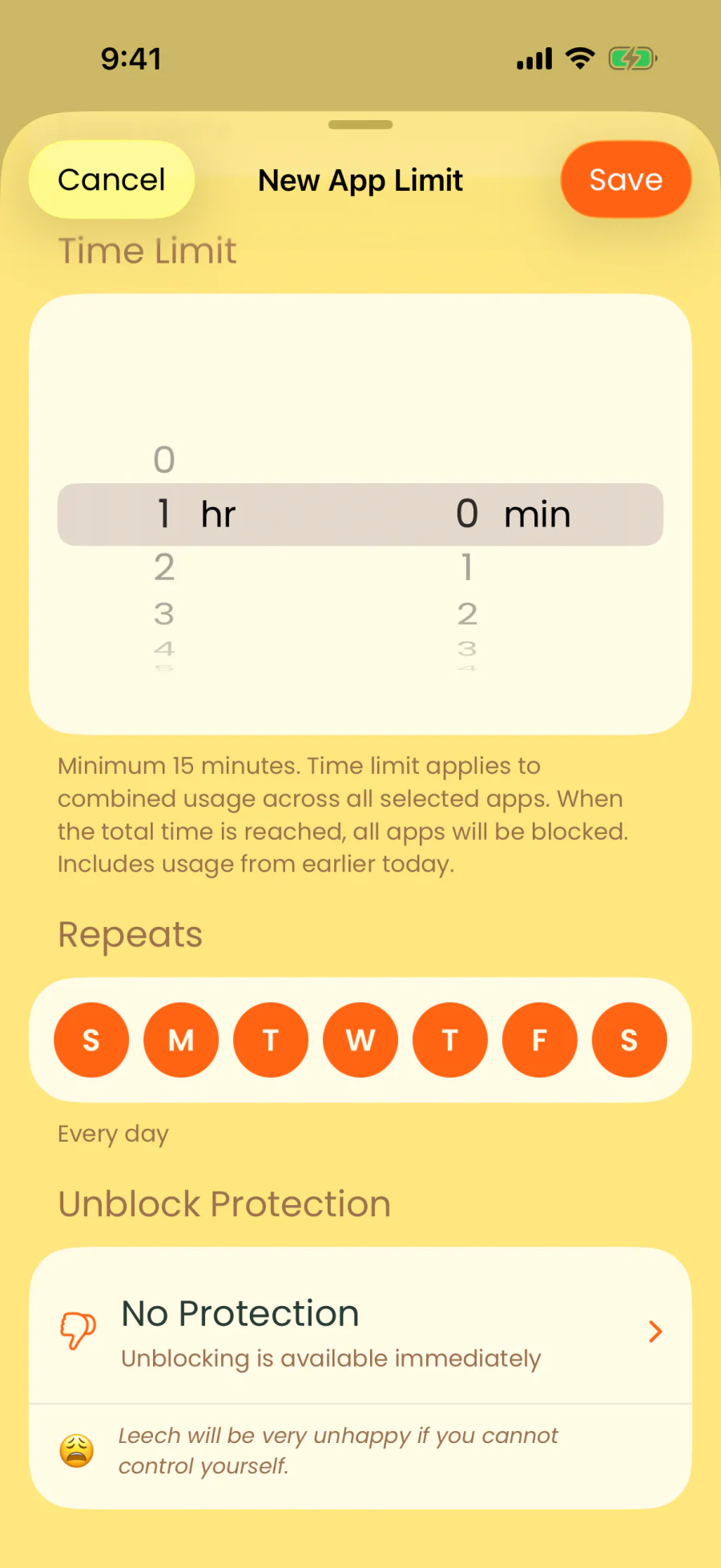
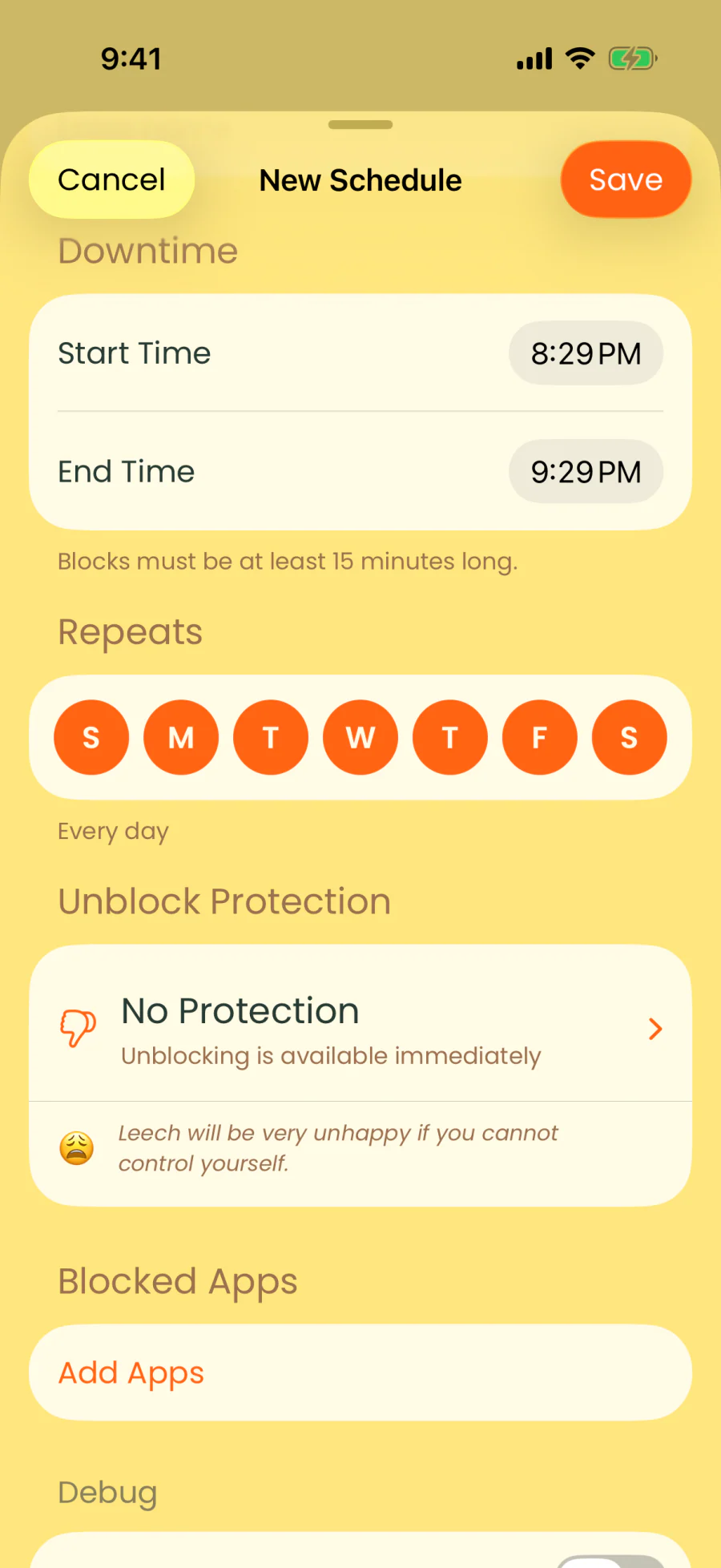
Set a start time and an end time. Bedtime to morning works well.
Choose which weekdays it repeats, so Friday can be different from Monday if you like.
Select the apps that keep you up, and pick the protection you want while the schedule is on.
Screen Leech helps you set app limits and schedules so you can protect your focus and take back your time. Leechy is there to help you stick with it. No Screen Leech account is needed.
Screen Leech uses Apple’s Screen Time tools for blocking. Optional Cloud mode saves your setup to your private iCloud database. Service providers process subscription, analytics, diagnostic, and advertising data as described in our Privacy Policy, where you can also learn about your choices.
Screen Leech is only on iPhone and iPad for now. We'd love to bring it to Android in the future.
Apple Screen Time can block apps and enforce limits with App Limits and Downtime, depending on your settings. Screen Leech uses Apple’s Screen Time API with a friendly interface, app limits, schedules, and protection choices. Free uses Timer protection and may require waits and rewarded ads to unblock or change active blocks. Pro removes ads and offers No Protection, Timer, and Full Protection.
Premium is tied to your Apple ID. Use the same account on your iPhone and iPad to enjoy Screen Leech Pro on both.
Screen Leech disables your ability to delete apps so you're not tempted to remove Screen Leech while a block is active. Your blocks stay in place until you're ready to change them.
You can set up limits and schedules without creating an account.
Create a new schedule, choose a start and end time, pick the weekdays it repeats and select the apps it covers. The evening routine guide has ideas for the rest of the night.
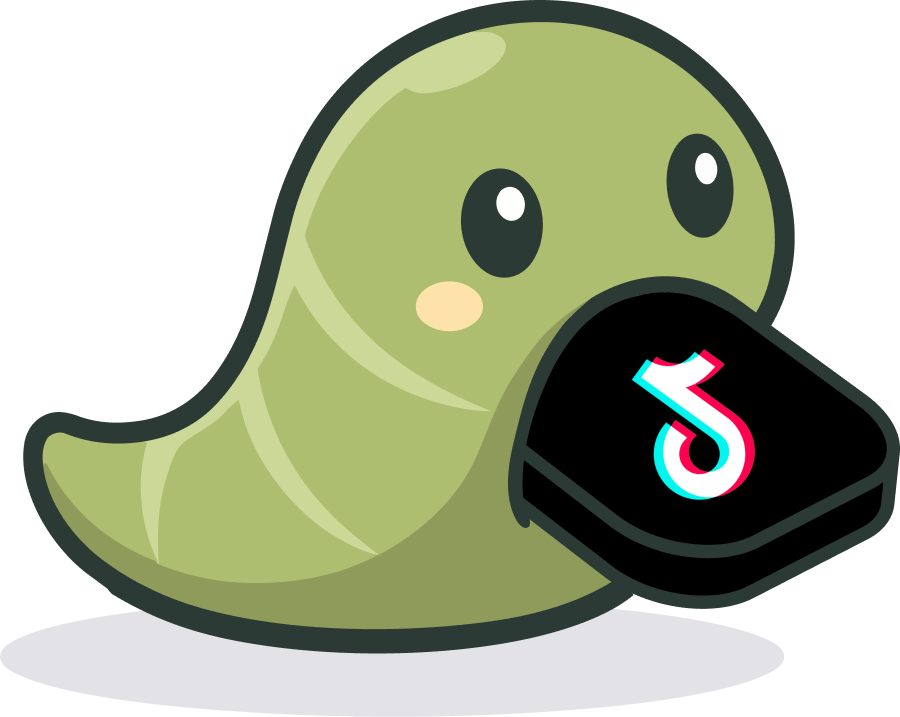
Instead of the app, you see the Screen Leech block screen with Leechy, like the TikTok example above.
Still stuck? Visit Help.